This is an old revision of the document!
Add Templates, Checklists and other Guidance Materials
Guidance material provides information on HOW to perform processes. It can come in different formats such as templates, checklists, training, tools, or practices.
Associate the formats to the element types best-suited for that type. For example, practices typically explain how to perform an activity; templates usually pertain to work products.
Because the list of guidance material can grow overtime, use folders to organize the material and make it easier to find. For example, you could place all templates under a folder called Templates, and even further organize using sub-folders for different process areas such as 'Program Management', 'System Requirements' and so on. Use your organization's standard practice, ease of navigation, as well as process architecture to determine folder structure and naming conventions.
Creating and organizing guidance material
To create a new guidance material, navigate to Process and click or tap on Guidance. Next click on the three dots or plus sign and select the relevant guidance material type (Practice, Tool, Training, Metric, Template, Checklist, Arbitrary File) (1) .
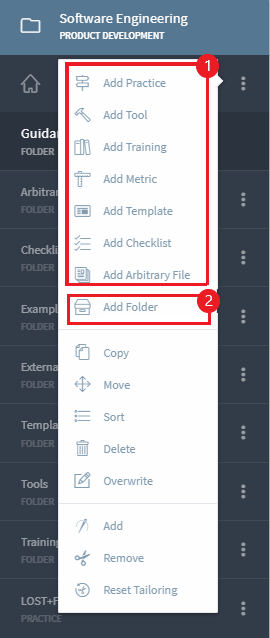
When defining larger processes, you can organize the guidance material in folders for better readability. Folders can be created by selecting Add Folder option (2) . You can then create new guidance material in the folder; or can Move existing guidance material and Paste it in the folder of your choice.
Adding Files to Guidance material
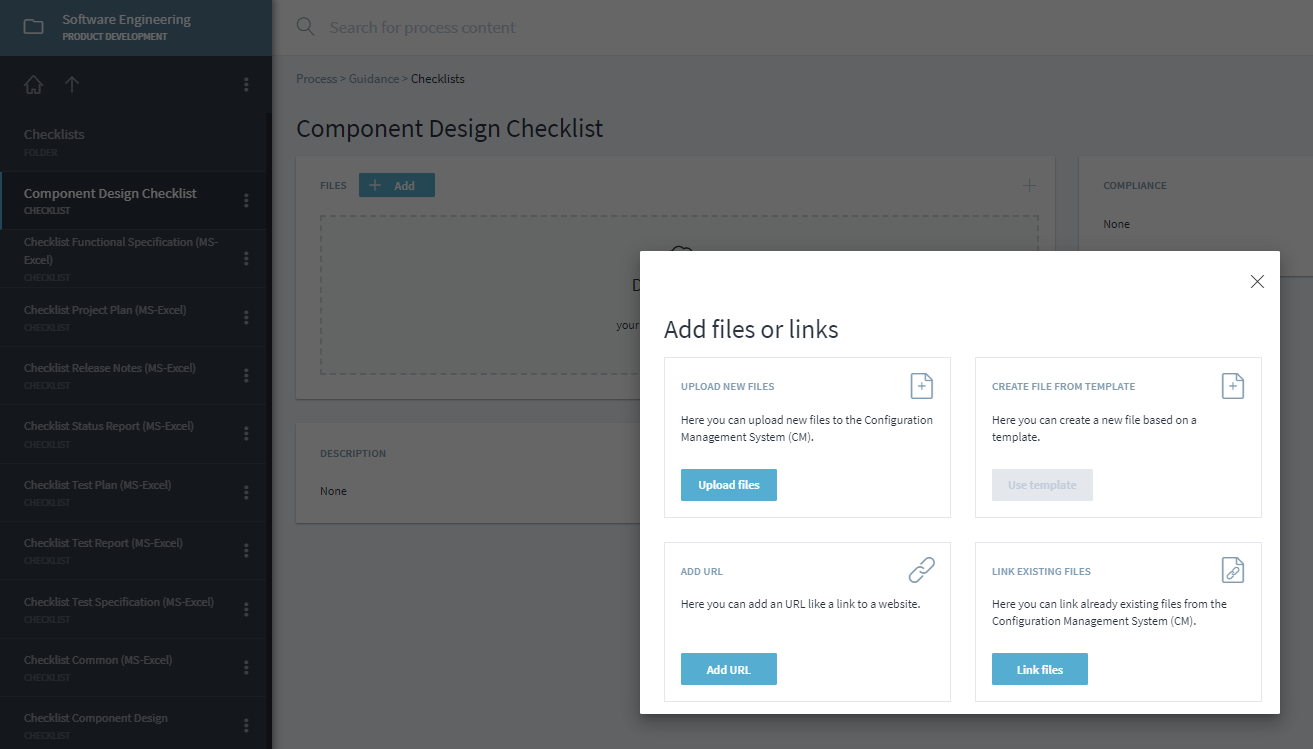
Once you have created guidance, you can add files to the Guidance by either clicking or tapping on Add button or using the Drag & Drop or Browse function. Add option also allows you to add link using ADD URL option.
Guidance can be used as containter to specify type of Guidance (E.g. Template Project Plan) in a standard process. The projects that are instantiated using the standard processes can then contain the actual project specific files or URL.
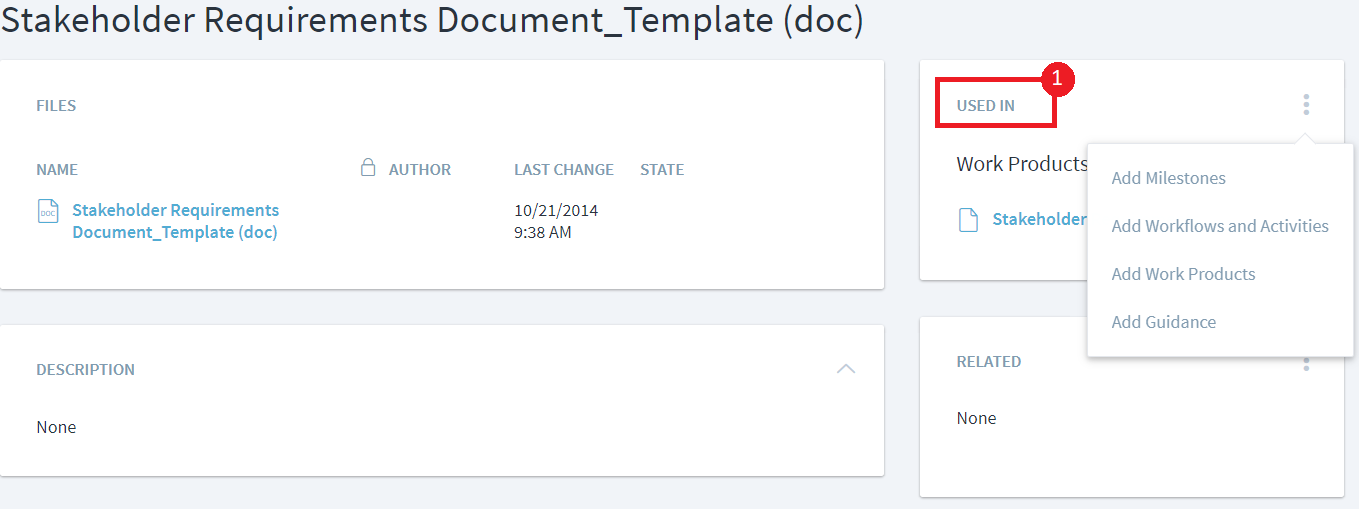
Associations to Work Product, Workflow, Activity or Milestone.
Guidance can be linked to other process elements by selecting the Guidance and using the USED IN option (1) or by been in the process element and selecting the Guidance (2).
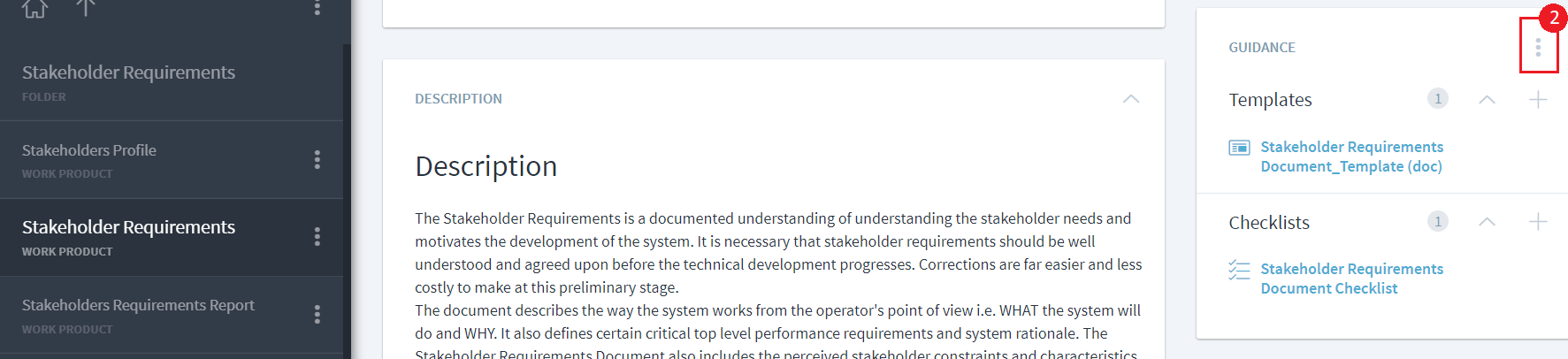
In below example, Guidance has been added in Work Product.