This is an old revision of the document!
Use Teams with Roles
Modeling of roles and teams through RASIC (Responsible, Approves, Supports, Informed, Consulted) allows a clear assignment to an activity or a workflow.
A direct assignment of an activity or a workflow to a role identifies the expectations for that role. An indirect assignment to a role happens through a team.
A team comprises a standard set of roles who typically work together repeatedly to carry out a specific set of activities. Change Control Board (CCB) and Engineering Process Group (EPG) are some examples of a team. Teams can also be used to model cross-functional agile teams and other instances where responsibilities are shared across multiple roles.
Model a Team
You can model a team just like a role, associating it with other process elements like activities, workflows, guidance. To create a team, navigate to Roles and use the plus symbol or context (three-dot) menu to select Team.
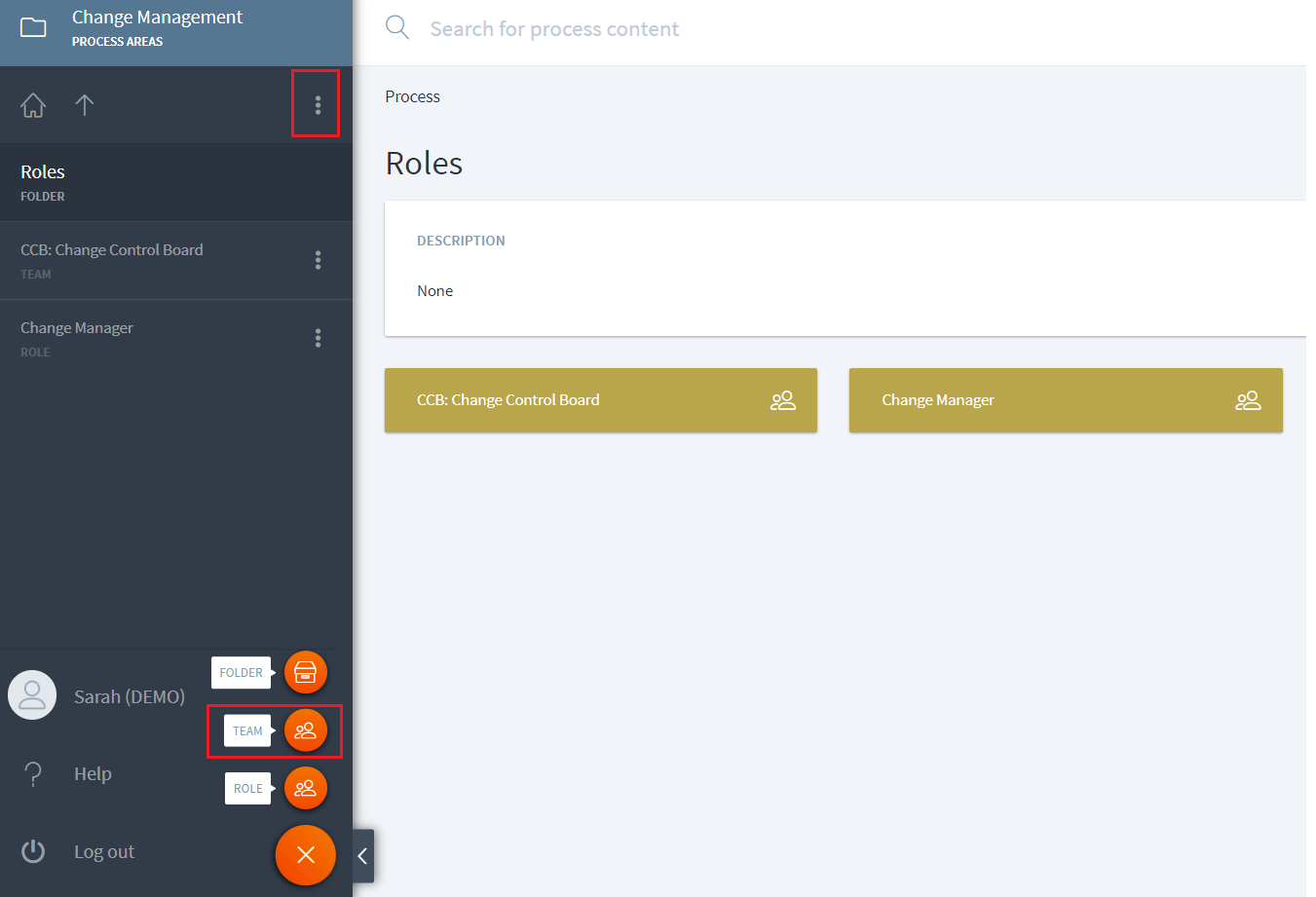
You can edit the description field to provide more information about the purpose of the team. Use the Roles widget to add the roles that this team comprises as well as the team leader; do not include this information in the description. If there is any training or similar guidance that applies to the team as a whole, model it as a Guidance element.

Use a Team
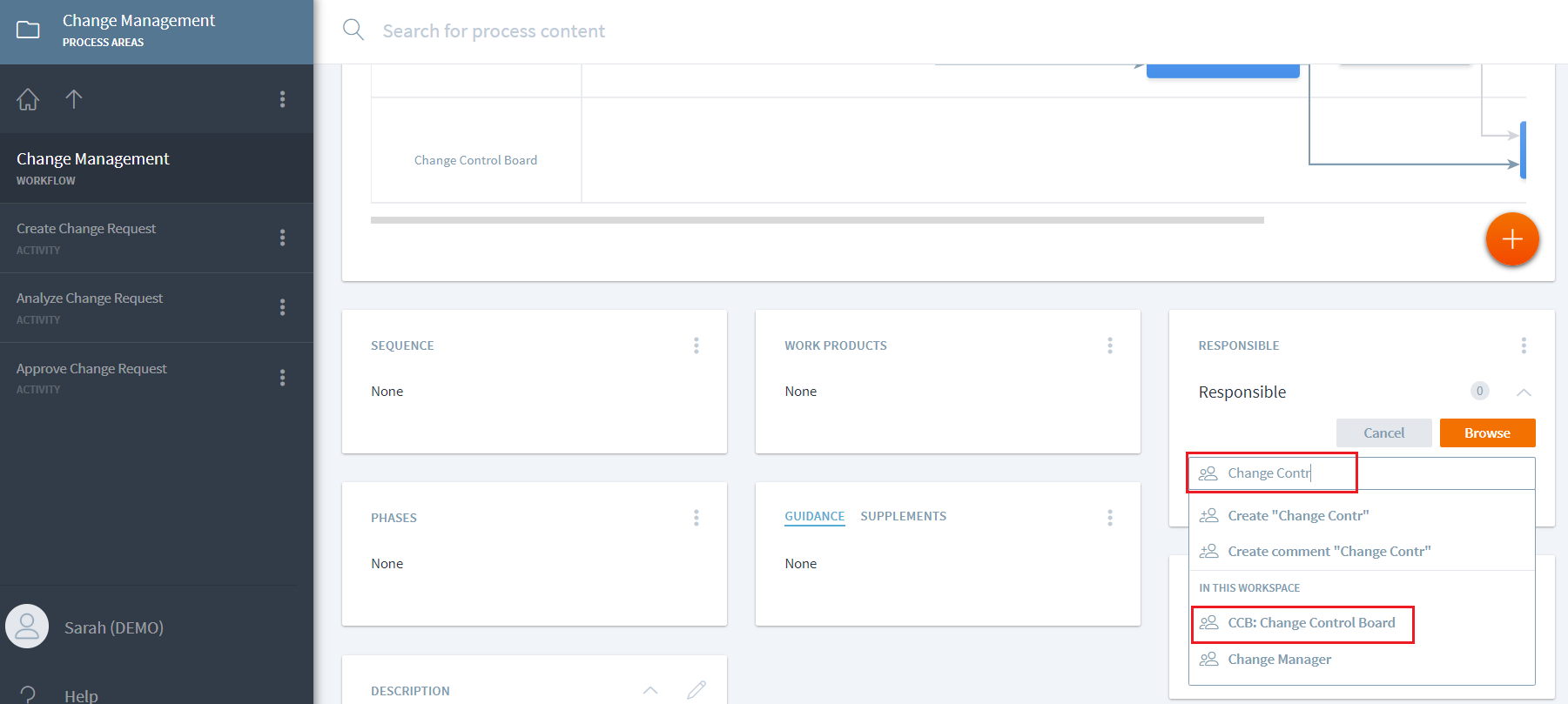
Like role, a team can be assigned in any capacity i.e. Responsible, Approves, Supports, Informed, Consulted to an activity or a workflow as shown in the following example in the screenshot.
View a Team Assignment for a Role
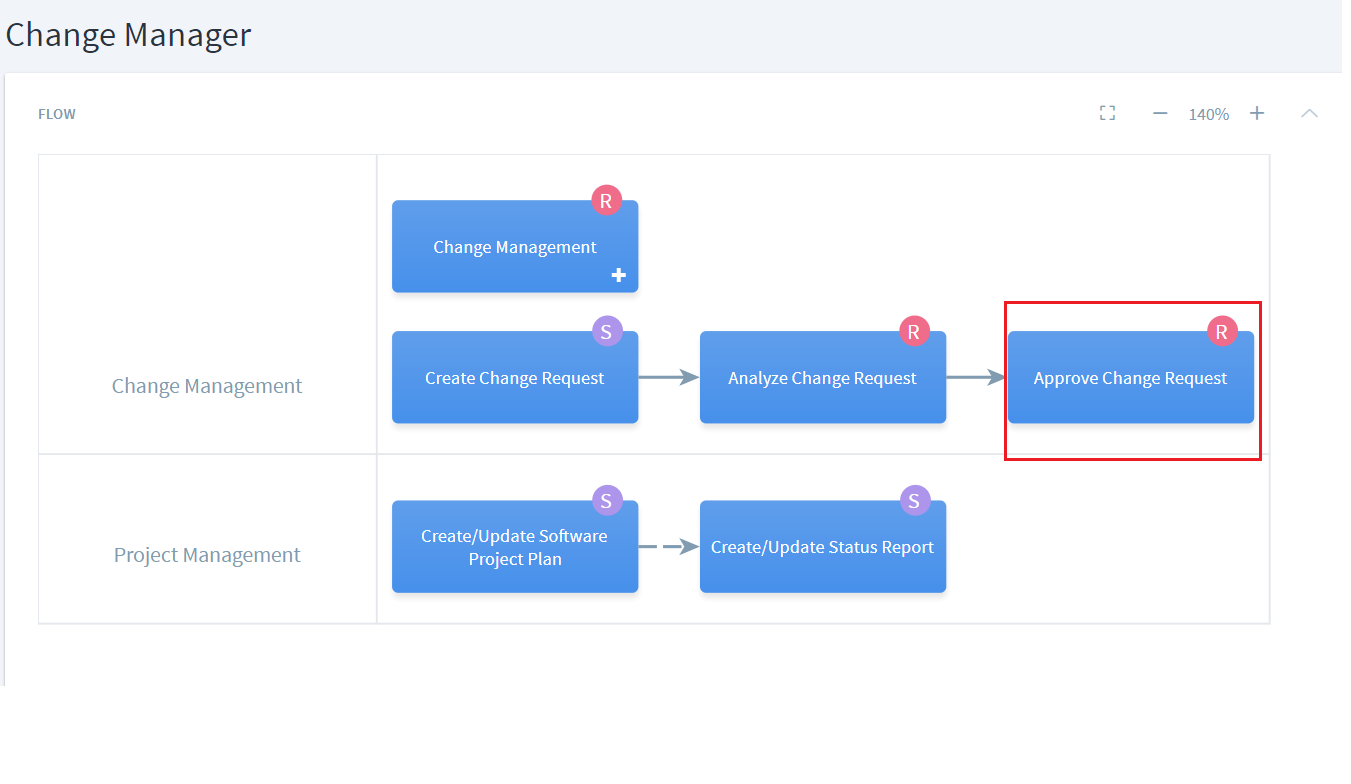
Because a role can be part of a team, the visualization for a role shows the team RASIC in addition to the direct RASIC. In the following example, the visualization shows 'Change Manager' as Responsible for 'Approve Change Request'. This assignment is indirect because 'Change Manager' is part of the 'Change Control Board' Team who is responsible for that activity.