This is an old revision of the document!
Generate process exports in PDF
Stages provides the capability to do process exports in PDF format for any given process as well as process elements. This allows users to download the PDF which can be viewed offline, shared with external stakeholders or partners, or stored in a records management system for long-term storage.
Create Process PDF
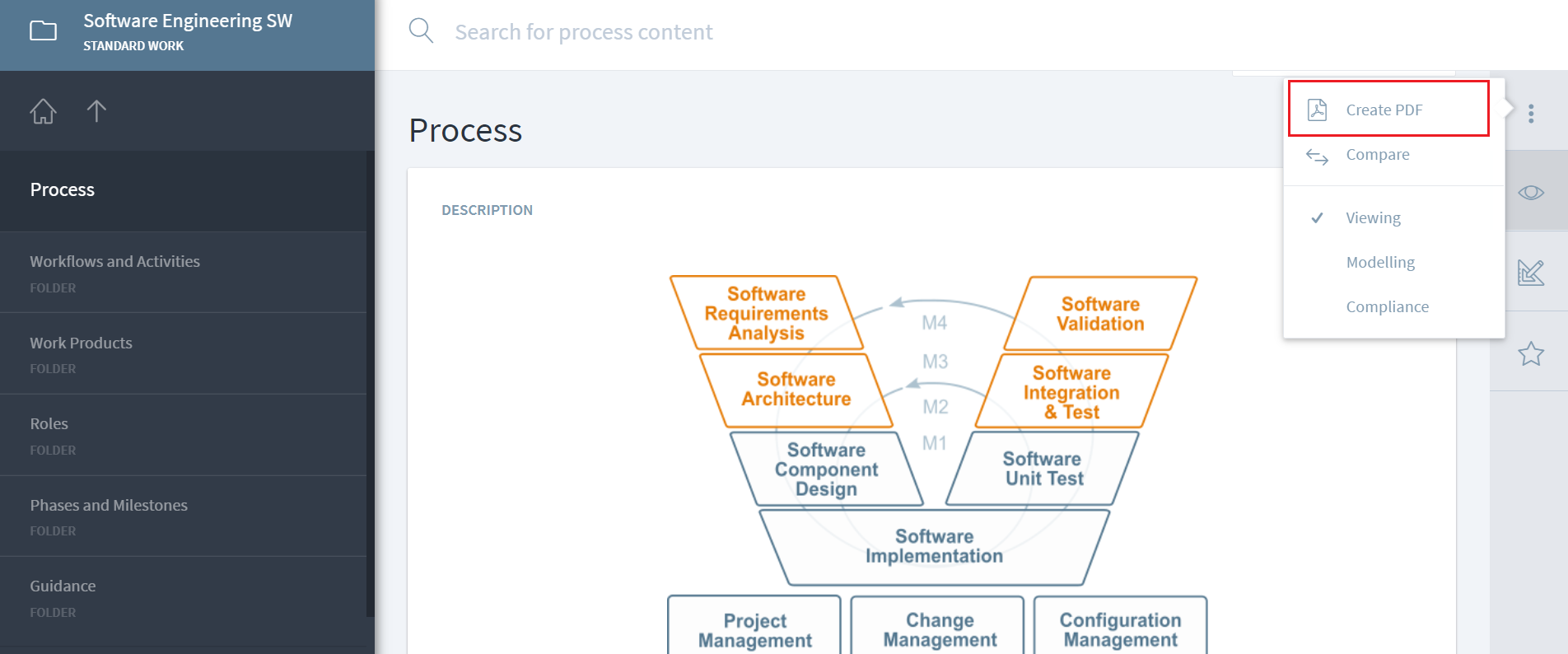
To create a PDF of your process, navigate to the Process and click on three dots on the top right corner to view the option of Create PDF and click on it.
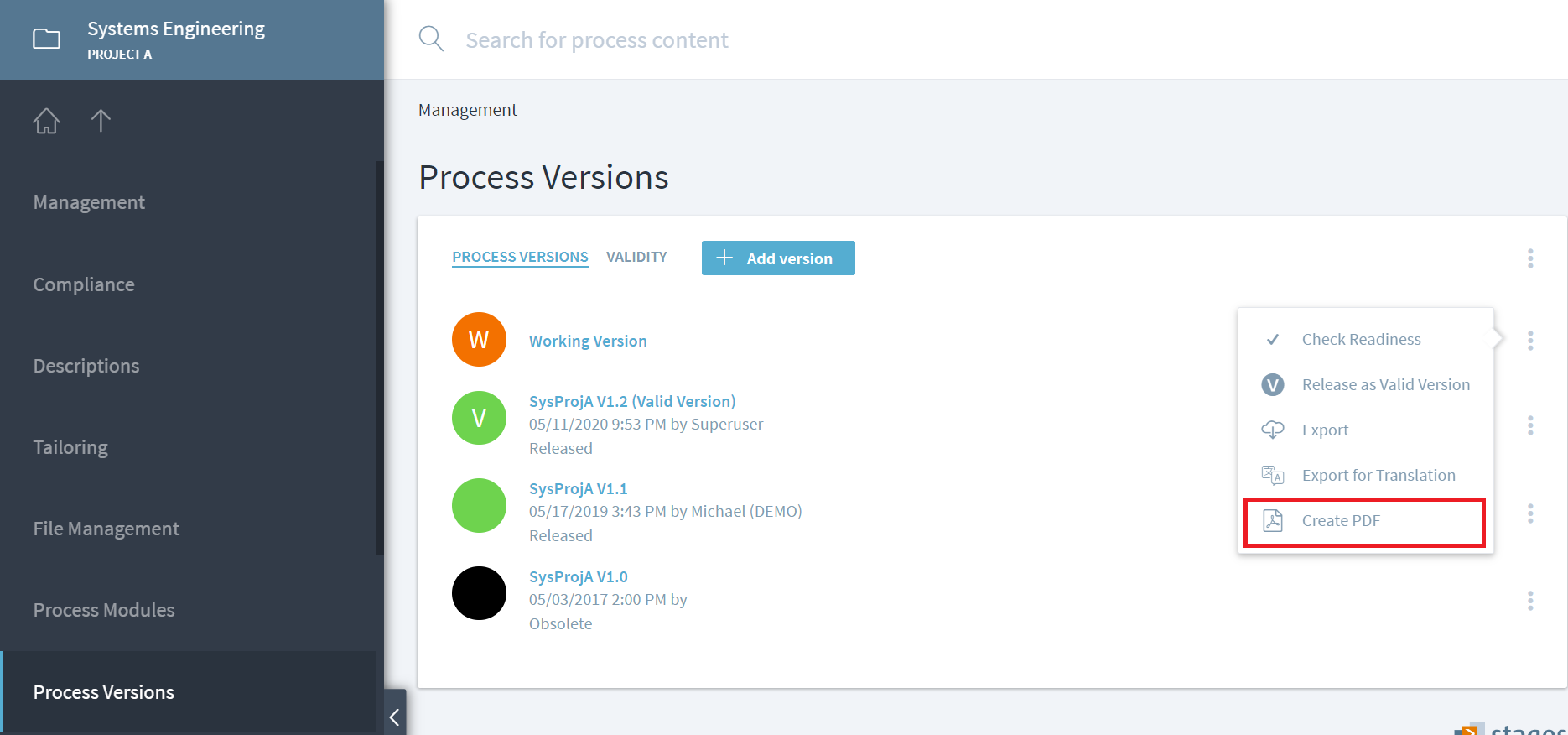
Alternatively, process export can also be generated by navigating to Management > Process Version and selecting Create PDF option for any of the process versions.
There are three different templates available to choose from depending on the type of information that is needed.
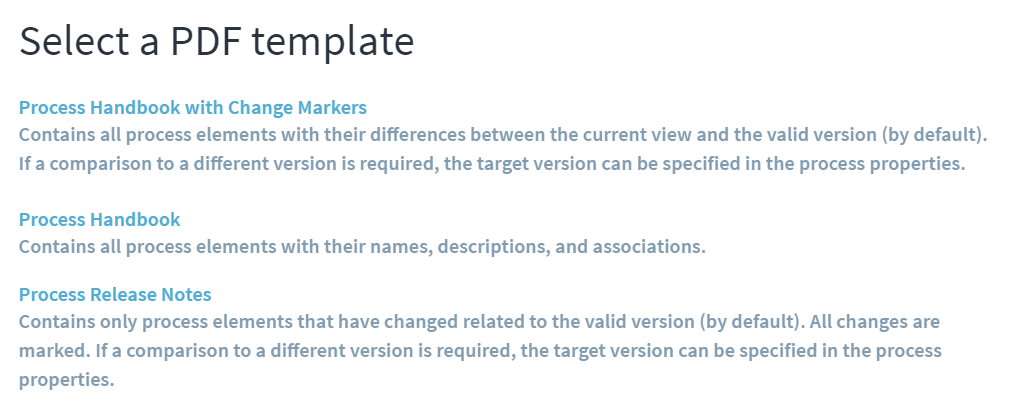 If you select the template
 Process Handbook with Change Markers, please note that the comparison will be done from the process version you have currently selected (=current view) and the valid version. If you want to specify a different process version than the valid version for comparison, you need to change a property for your process. Specify Workspace and Process Version for Comparison Change Markers with this syntax: Company|Workspace(s)|Target Workspace>Process Version Name
Please note:
- There should be no space before or after the “>” when you specify the process version
- The property can only be changed in the working version of your process and when you create a new baseline whatever is specified will be stored for the new baseline
Create Process Element PDF
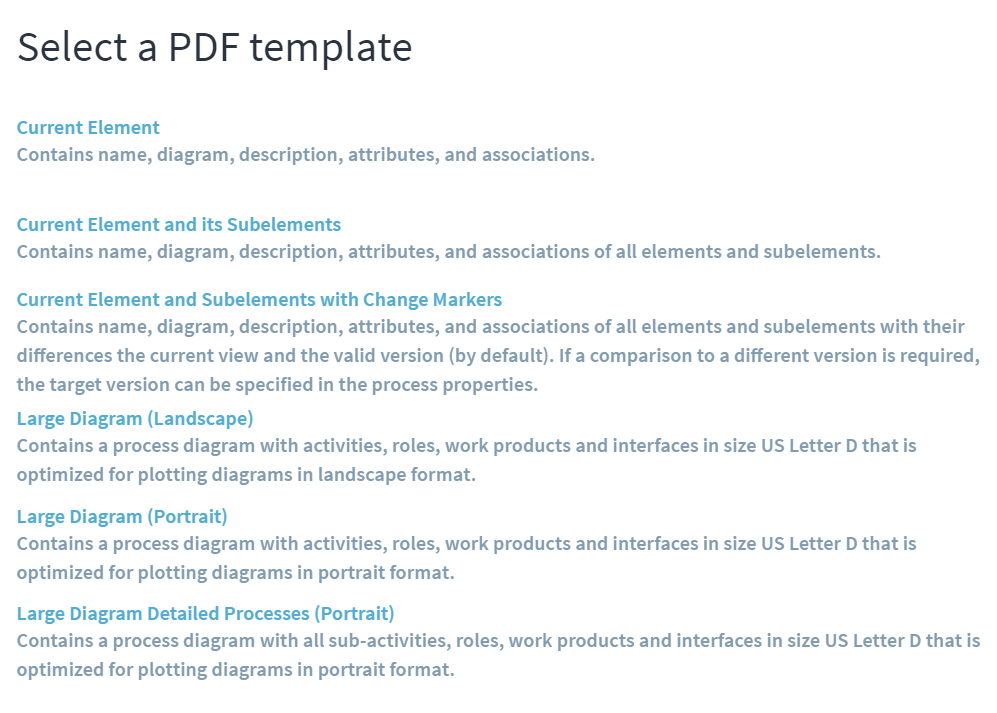
Similar to the Process PDF creation above, a PDF can also be generated at the process element level (workflows & activities, work products, phases & milestones, guidance, value streams) as well as at the lower individual element level (e.g. for a specific workflow or even a milestone). Navigate to the process element (e.g. workflow and activities), click on three dots on the top-right to open the menu, and click on Create PDF.
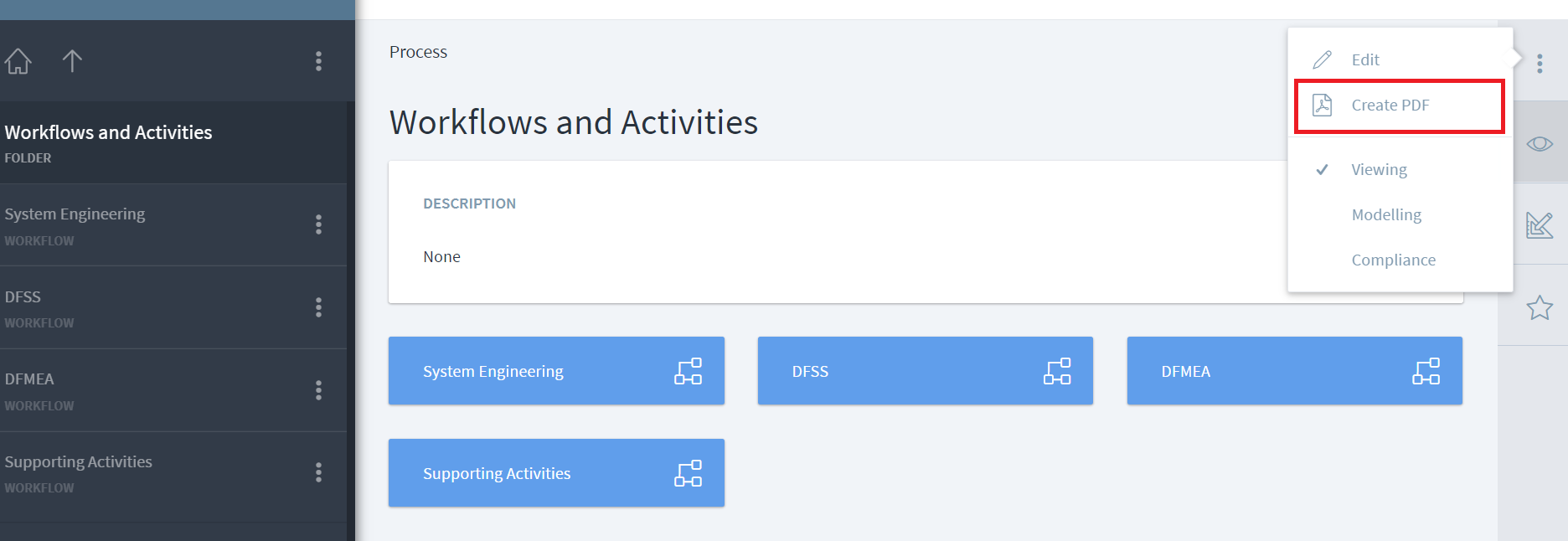 Users will be presented with the option to create a PDF for the selected process element with varying levels of details based on the template. For
 workflow and activities, there will be additional options in the menu to create a PDF with the process diagram.
All PDF exports can be customized and additional PDF exports can be added. Please get in touch with one of our consultants to customize Stages for your specific needs.
Hints
Some tables within descriptions might get too wide to fit on a page. In this case, you can adapt table contents for printing by using the print/noprint directives (see the editor directives). Another option is to change the text wrapping behavior by adding the following section to the <font inherit/Courier New,Courier,monospace;;inherit;;inherit>processhandbook_style.ftl</font> file of the metamodel:
table {
    word-break: break-word;
    word-wrap: break-word;
}