This is an old revision of the document!
Stages Assistant Configuration
The Stages Assistant is a chatbot that uses Generative AI to answer all kinds of questions using the process content defined in Stages.
You can find more on its basic usage and functionality here.
The paragraphs below describe how to set up, train, and maintain the Stages Assistant.
Acknowledgement of AI-enabled Features
The Stages Assistant uses Generative AI to implement its various capabilities. Although our implementation aims to minimize hallucinations through its knowledge-graph technology, AI-based systems can be imprecise or incorrect, a phenomenon widely known as “hallucinating”.
To make users aware of this fact, each user is required to accept an AI disclaimer before first use.
See here for more info on this subject.
Views and Workspaces
Processes in Stages exist in many different versions, workspaces, variants, and process instances. AI technologies work best if the scope of the underlying information is clear and well-defined. Combining different process versions, variants, and instances would result in imprecise or even misleading answers. Therefore, multiple Stages Assistants can be defined, one for each view on the process landscape.
Possible process views are:
- Standard processes that everyone should follow
- Process variants, e.g. a development process for normal products, one for safety-critical products, one of cybersecurity-critical products, and one for both safety- and cybersecurity-critical products
- Processes that are especially tailored for specific programs or projects
Views can consist of a single workspace or a collection of workspaces. This way, the standard process view can consist of a workspace containing the standard development process, one or more workspaces containing all organizational processes that are not executed by projects or product teams, and a workspace containing the organizational policies.
Stages Assistants are always trained on the Valid Version of the process content in each workspace. This version must be different than the Working Version.
Assistant Configuration
Stages Assistants are configured in the Administration > AI > Chatbot menu. The main screen shows the currently configured assistant views.
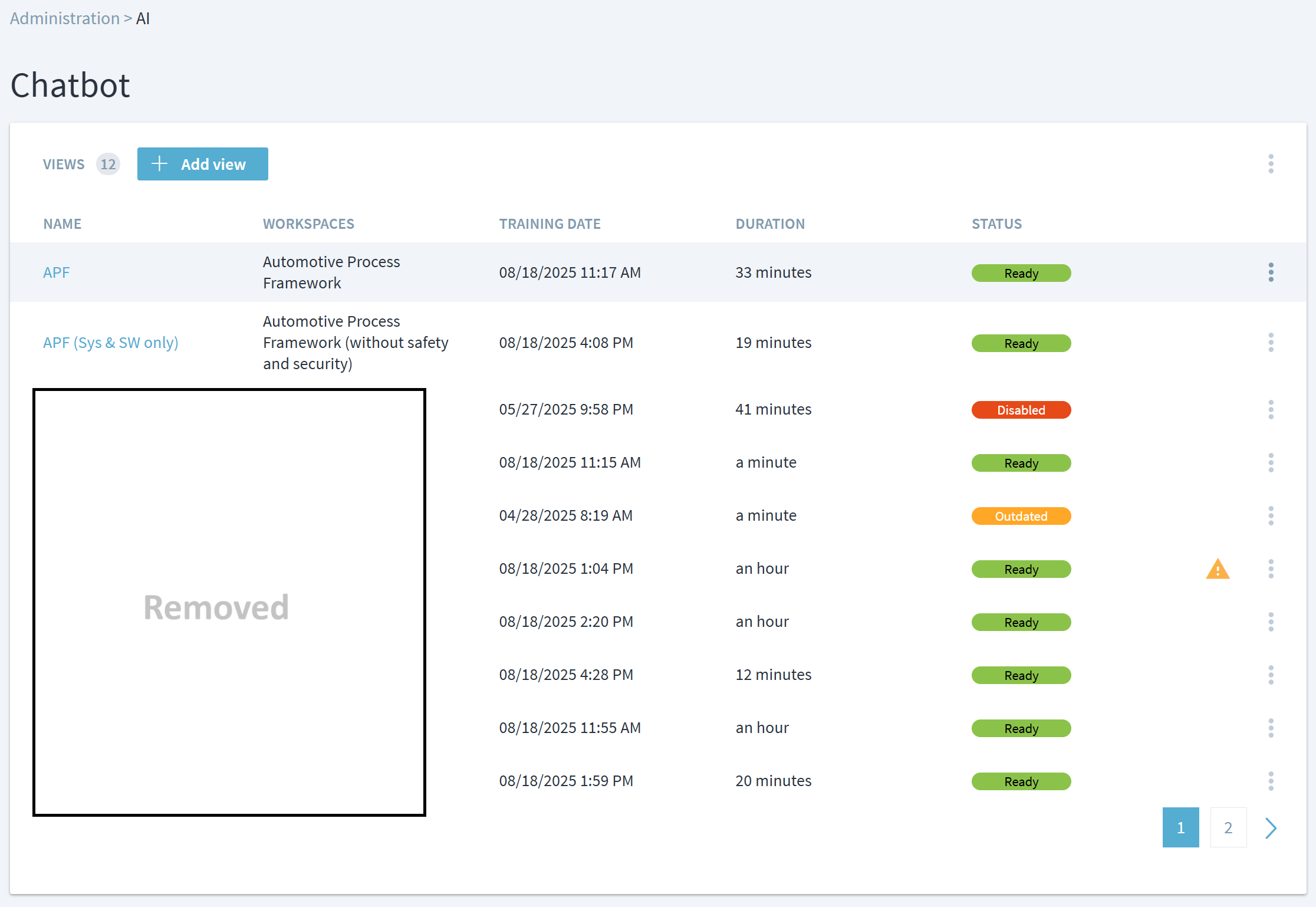
In addition to the name and the view, you can see the following information:
- Time and duration of last training run
- Status
- Ready: assistant view is fully trained, enabled, and can be used by end users
- Disabled: assistant view has been disabled or not trained yet
- Outdated: assistant view can be used for end users, but a newer valid version of one of the workspaces was released. Depending on the training configuration (see below), the view will either be automatically retrained or needs administrators to manually start the training.
- Warnings that occurred during training, e.g. missing properties. If those warnings persist, please contact the Stages support or your dedicated Stages consultant.
- Possible actions
- Edit the view configuration
- Rename the view
- Assign workspace or workspace collections (see above for details)
- Start training
- Delete view
- Enable/disable view
Clicking on the view name or selecting the Edit action opens the following configuration screen:
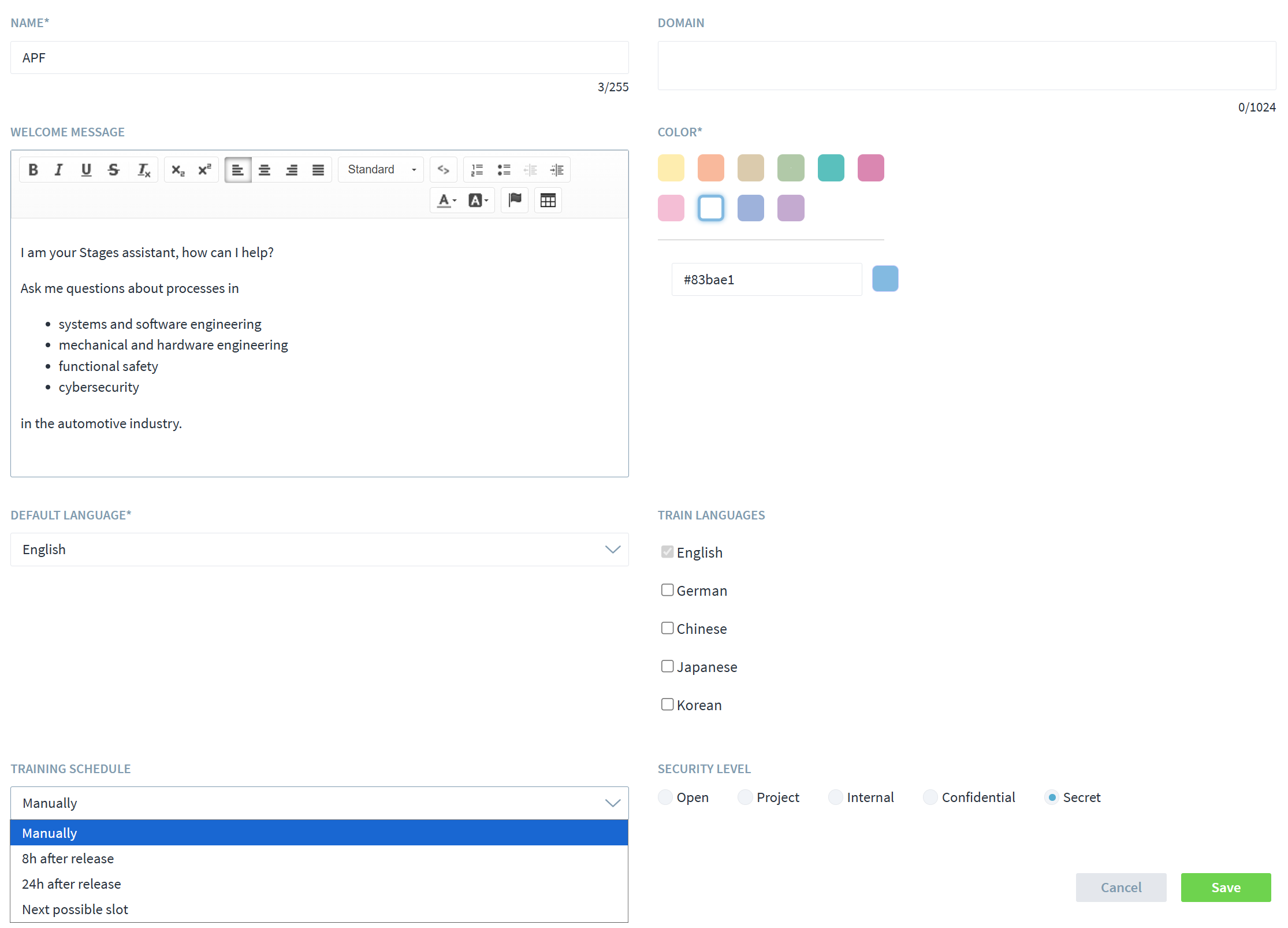
In the configuration screen, the following information can be configured:
- View name
- Welcome message that is displayed to the end users when they open the Assistant view. The message should describe the scope of information the Assistant can answer questions about.
- Color scheme so users can visually distinguish the different views
- Default and trained languages. Please note that each enabled language is trained separately, so enabling multiple languages increases the training costs. Most AI language models are capable of automatically detecting the language of the user questions and automatically answer in the correct language without requiring separate training. Separate trainings for each language are only required if the process content is different, e.g. specific for certain regions.
- Training schedule to be selected automatically when new valid process versions are being released or requiring manual interaction
- Security level required by end users to access the assistant view
Please note that each view needs to be separately enabled after successful training is run to be usable by the end users.
Acronym Handling
The assistant needs to be made aware of company-specific acronyms that are not described in the process models.
To manage those acronyms, a Stages administrator with edit permission in the new “Acronyms” domain can access the table via Administration > Acronyms.
For each acronym, its actual expansion and a longer multi-language explanation can be maintained.
For mass updates, an import and export of CSV files can be accessed via the “…” menu.
Required Permissions
To use the AI assistants as end users, the following permissions are necessary:
Chatbot: ReadWorkspace: Read
To configure the AI assistants, the following permissions are necessary:
AI Administration: RCMDWorkspace: Read
For both cases, the permission scope needs to be set to the workspaces the chatbots are trained on. In case workspace collections are being used for chatbot training, all workspaces within all collections need to be covered by the permission scope.
Limitations
The context window of the used AI Large Language Models (LLMs) is subject to limitations. To accommodate those limits, the process models are never sent to the LLM in their entirety, but only in select segments that are required to answer the user questions. As a consequence, questions that address whole process models, e.g. “List all work products of all processes”, currently cannot be answered.
During the training of the assistant, all process elements are transformed into a knowledge graph and stored in special databases. The following elements are currently excluded in this transformation:
- landing pages
- process start pages
- “comment only” associations
- descriptions that are managed via “
Management > Descriptions” (except for the inlined ones) - graphics that are embedded in element descriptions
- custom element attributes
- compliance mappings
- user-role associations
- project files
It is planned, to include those elements in future revisions of the assistant training scripts, if those improve the quality of the given answers.
Process interfaces to elements outside of the training view (workspace or workspace collection) are ignored.
To customize the trainings scripts, please contact the Stages support team or your dedicated Stages consultant.