States and Quality Levels for Work Products
A Work Product represents the artifact, outcome, or a deliverable created or consumed during the process. In the overall context of a process, a work product progresses through various states when handled by multiple activities. This state change can happen within a workflow or through the course of different workflows during the product or program lifecycle. For example, a work product like 'Software Project Plan' would iteratively go through a change in states like 'draft', 'under review', and 'released' in a software project management process. With every iteration or change, the work product can go through the different states again.
In addition, work products can be incrementally enhanced or increased in maturity, e.g. for specific milestones. Those increments can be expressed in work product quality levels. The example of a 'Software Project Plan' can advance in content and precision by moving through 'Preliminary', 'Established', 'Aligned with Customer', or 'Updated for Milestone X' quality levels.
Depending on your process metamodel, states and quality levels might be enabled or disabled.
Similar to other modeled process elements, you can also define and reuse work product states and quality levels across processes.
Create a work product state
There are two ways to add a new state to a work product:
1. Model them while modeling a work product as an input/output to an activity or a workflow
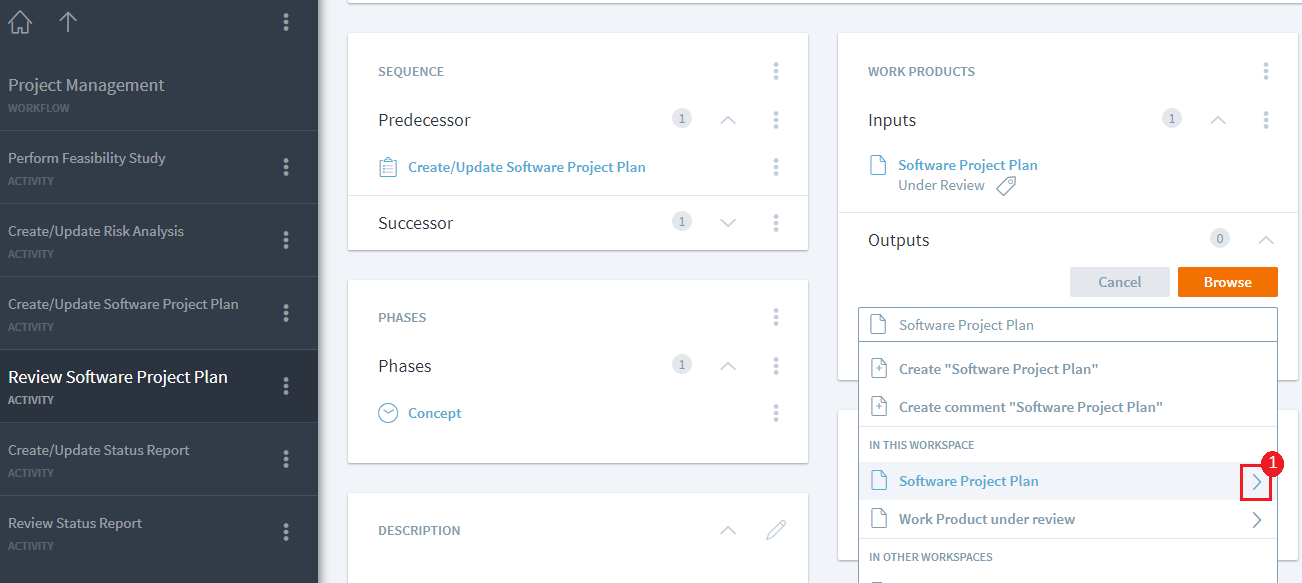
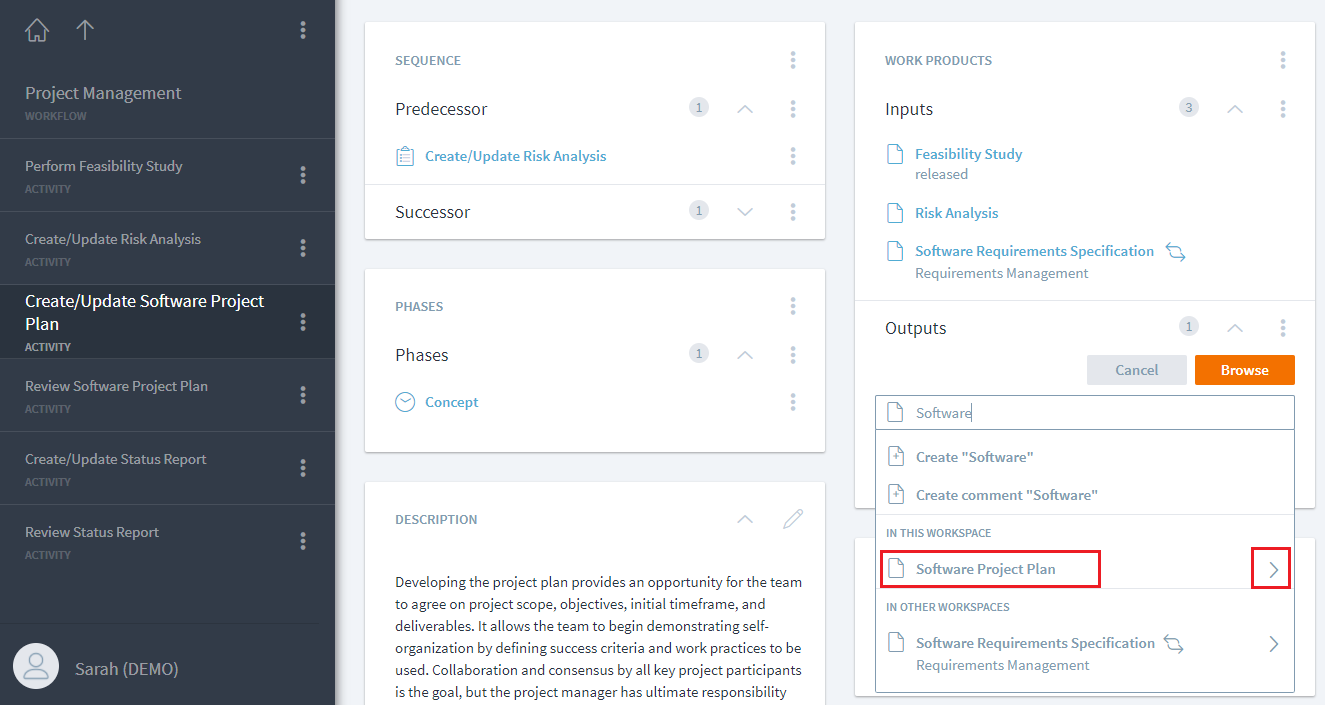
Type in the name of a work product and click or tap on the right arrow next to the work product.
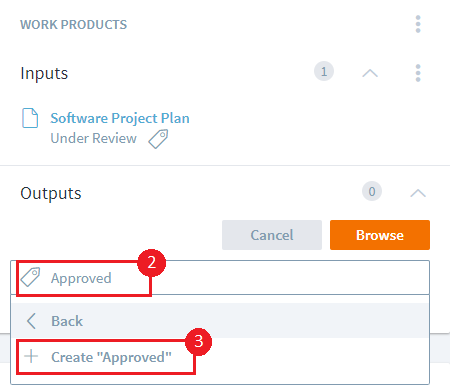
Next type in the name of the state as shown in ** (2) and select the Create option as shown in **(3) . In the following example, a new state called 'Approved' has been added.
2. Model a list within a work product and reuse them in an activity or a workflow
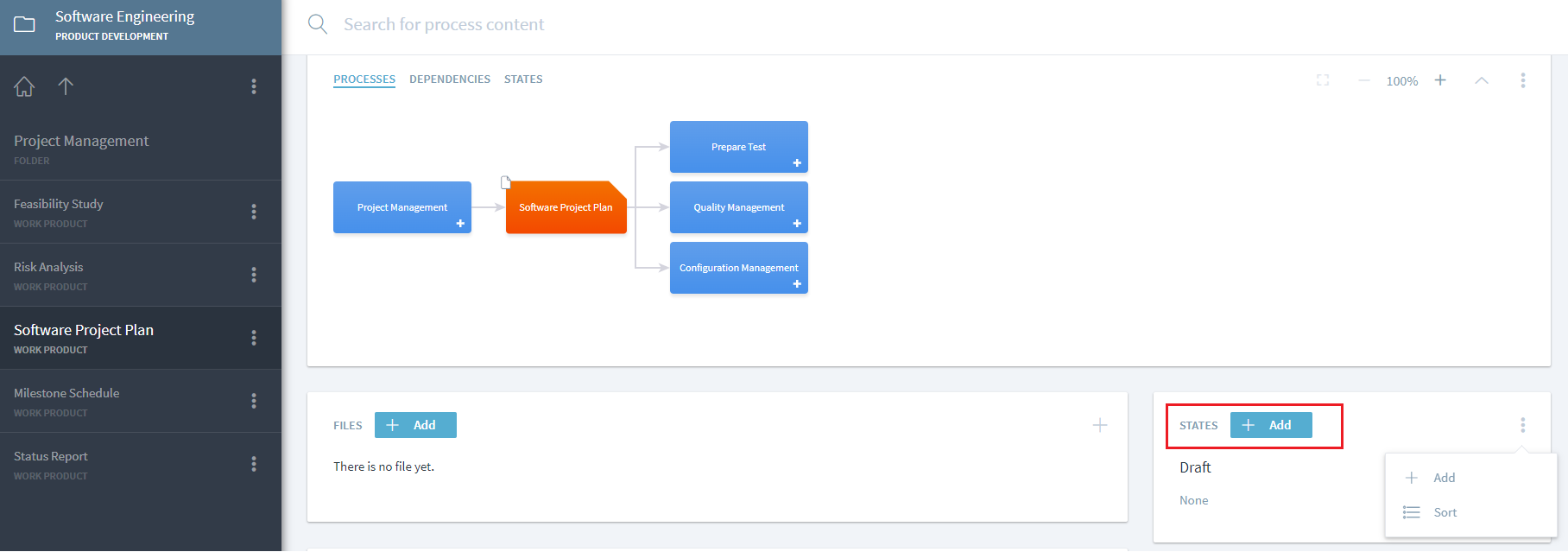
To add a set of states to a work product, navigate to that work product and click or tap on 'Add' to add the states.
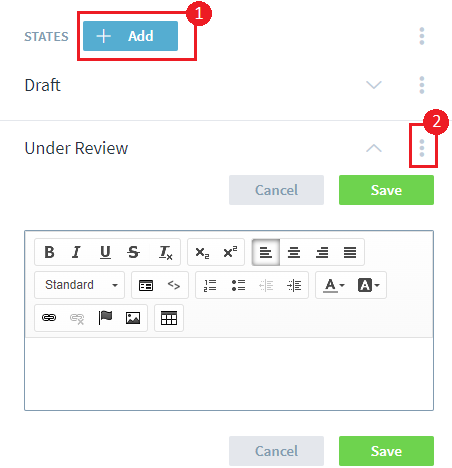
Note: For consistent interpretation across the user base, it is recommended to provide a description of what this state means by clicking or tapping on three dots next to the newly added state as shown in** (2) **and selecting the Edit option which will open the description text.
The work products states can also be created and assigned to work products through other process elements like milestones, guidance and value streams using the same steps as described for activities and workflows in their respective context.
Use a work product state
Once the work product states have been created for a work product, they can be used and reused for any activity where the work product is an input or an output. For the work product, 'Software Project Plan', three states have been created, hence while selecting it as an output, the modeler can view the right arrow indicating further state selection.
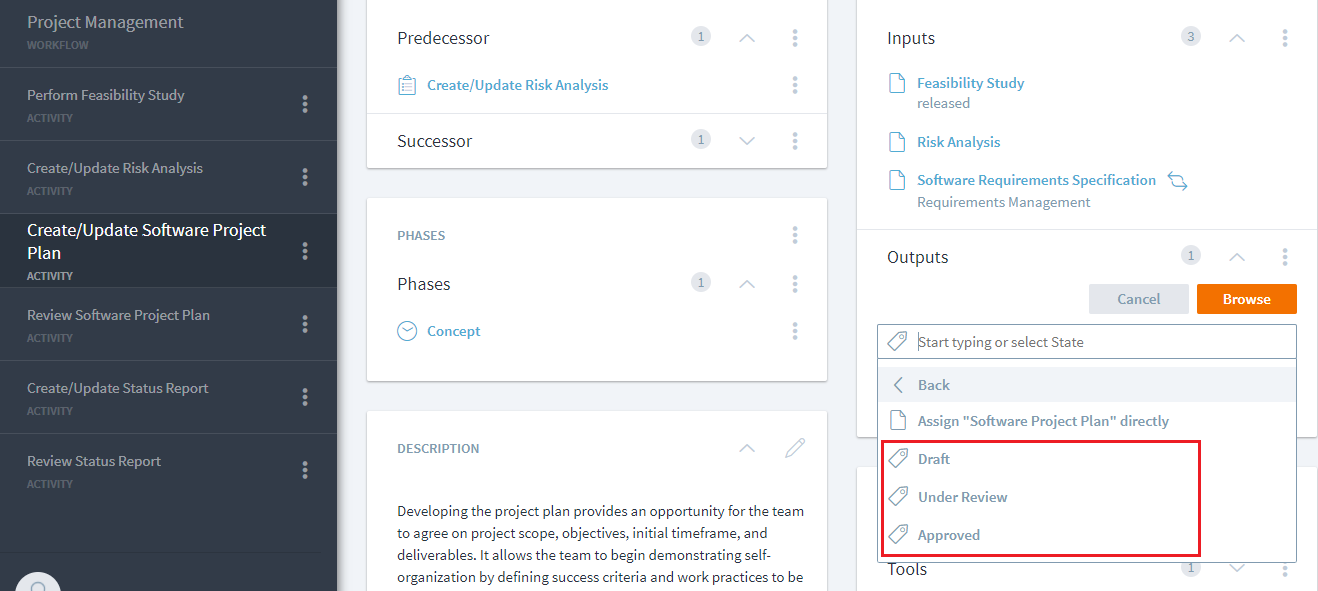
On clicking or tapping on the right arrow next to this work product, the modeler can then view all available states (draft, under review, and approved) for this work product to select one or even assign this work product as output without any state.
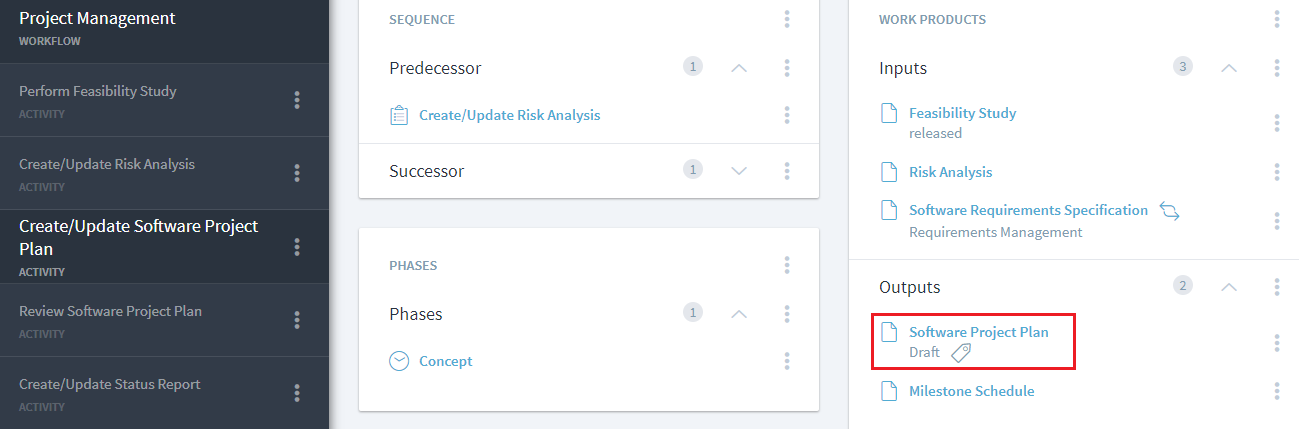
In this example, the modeler selects the 'Draft' state for 'Software Project Plan'. The selection of 'Draft' as a reusable state (and not as a comment) is indicated by the tag symbol.
Use state and quality level templates
Instead of creating states and quality levels individually, you can also define and use templates.
To define a template, go to Management > Descriptions and create either a State Template or Quality Level Template.

Underneath each template, you can define the states or quality levels and their descriptions.

Like other process element, you can define these templates in a process module, e.g. in a ““Structural Elements” common module, that you can import into other modeling workspaces.
To apply a template to a work product, use the context (…) menu in the State or Quality Level widget and choose the desired template.

Stages displays the list of states or quality levels that will be created for you to confirm. If a state or quality level with the same name already exists, the respective entry from the template will not be created, but the original element retained. Stages does not delete any existing state or quality levels.
'Comment' vs. 'State'
Before Stages fully implemented work product states, modelers could use comments on an input/output association to represent a work product state.
While informative, such comments are not reusable, manually entered and maintained as free text, which is prone to errors. Work product states enable reuse across the process, including propagating name changes, like other elements.
Although you can still add comments to work product associations, we strongly recommend you use the states and quality level features instead. You can still add comments to work product and other associations to add information for other purposes.
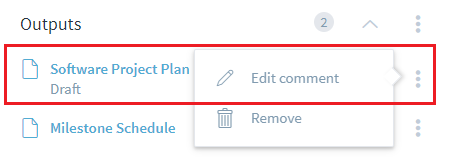
To add or edit a comment, select the context (three-dot) menu to the right of the association and select Edit Comment. After typing the comment, hit Enter or return to save it.
Tailoring a Work Product State
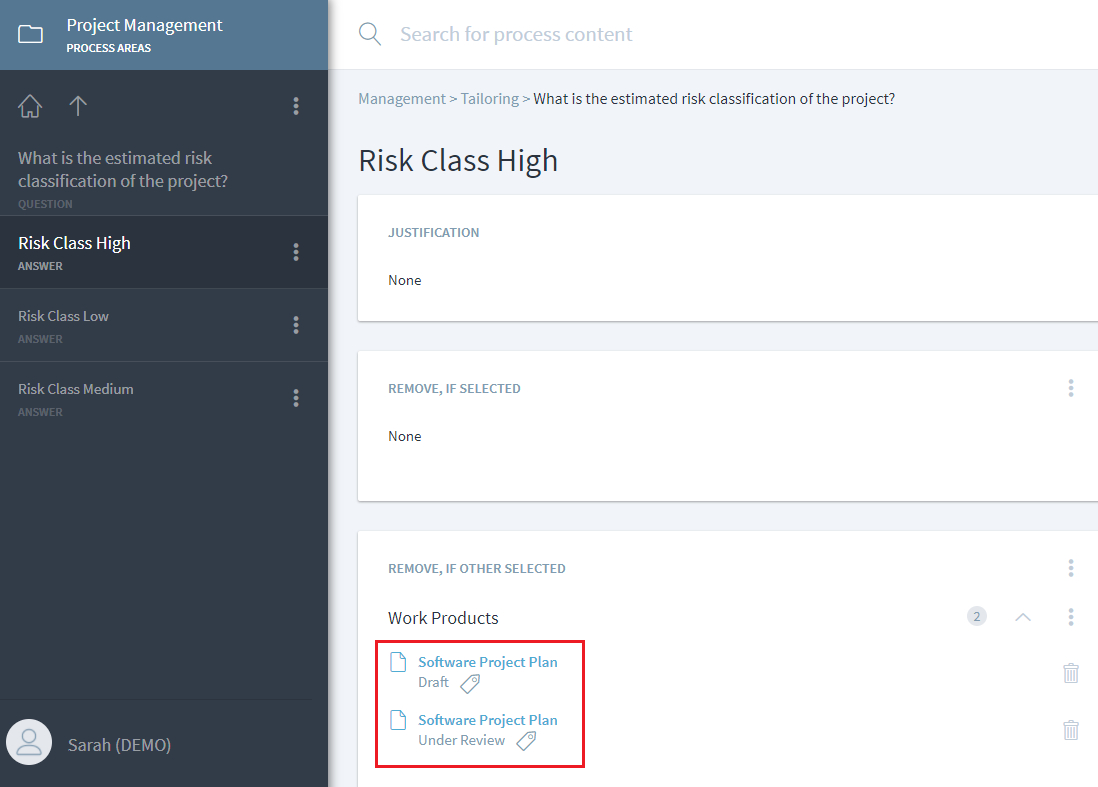
You can tailor a Work Product state or quality level in or out, like any other process element. Tailoring allows further refinement of allowable states and quality levels in a given project or project type.
When configuring the Tailoring wizard, select specific states or quality levels using the right arrow selection next to the work product. For manual tailoring, you can remove or add a state or quality level using its context menu in the States or Quality Levels widget.
Reporting API Extensions
The reporting API has been extended to access the work product states via new entities:
workProduct.getEntities(“hierarchy::HIERARCHIC,targetrole=dependentElements”)returns the list of states for a work product elementstate.getEntities(“hierarchy::HIERARCHIC,targetrole=containerElement”)returns a single element list with the work product for a specific state elementactivitiy.getEntities(“input”)andactivity.getEntries(“output”)now return a list of either work products or statesgetProperty(“Dependent”)can be used to determine if an element is a normal element (= false) or state element (= true)
Behavior of readiness checks with work product states
Process version readiness checks run when you manually add a new version of a process. The checks for association constraints run only on the work product itself, not independently on each state. The input for an association constraint check will be the associations of the work product itself, merged with the associations of all states. For instance:
- “Each work product is an input to at least one activity”: It is sufficient that the work product (or any state) is input to an activity
The same behavior is also applied for association constraints of type “single” or “none”, and other dependent element subtypes that may be configured in the metamodel. For instance, when a “step” dependent element subtype is configured for activities:
- “Each activity must have exactly one responsible role”: It is sufficient that the activity itself (or any step) has one responsible role. Different steps must not have different responsible roles.