Work with files
In an instantiated project or a program, specific deliverables are consumed as well generated during the execution of an activity. These deliverables or files are instances of the work product, which has further information like description, guidance, milestone and activity or workflow where it is used as input or output.
Though the work product is modeled in Stages, the files must be stored in a configuration management system (CM) like Subversion or SharePoint. Users can avail some of the CM features from Stages itself. For example, users can see the version history and file status from Stages. Depending on the integration with the CM system, users can also check in and check out the document from Stages to lock the file while editing and upload updates.
Note: To work with files, users must have an appropriate license and permissions.
Adding a new file or links
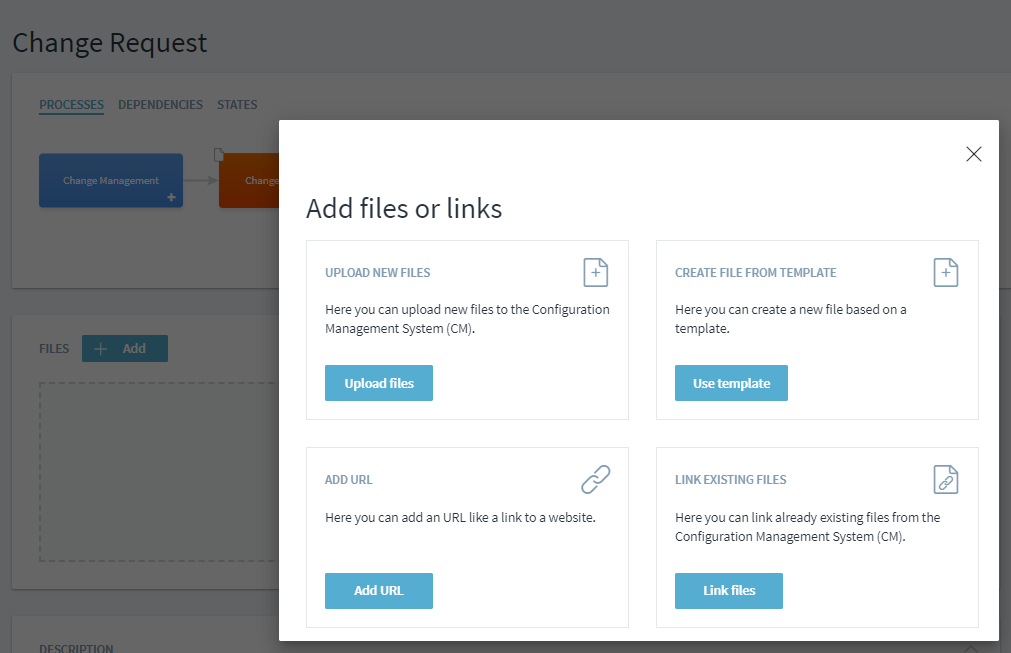
Stages provides multiple ways to add files or links to a work product:
- Uploading a new file
- Using a template to add a new file
- Adding a URL
- Linking an existing file
Note: These options can be limited based on the target CM system and any customization of its integration with Stages.
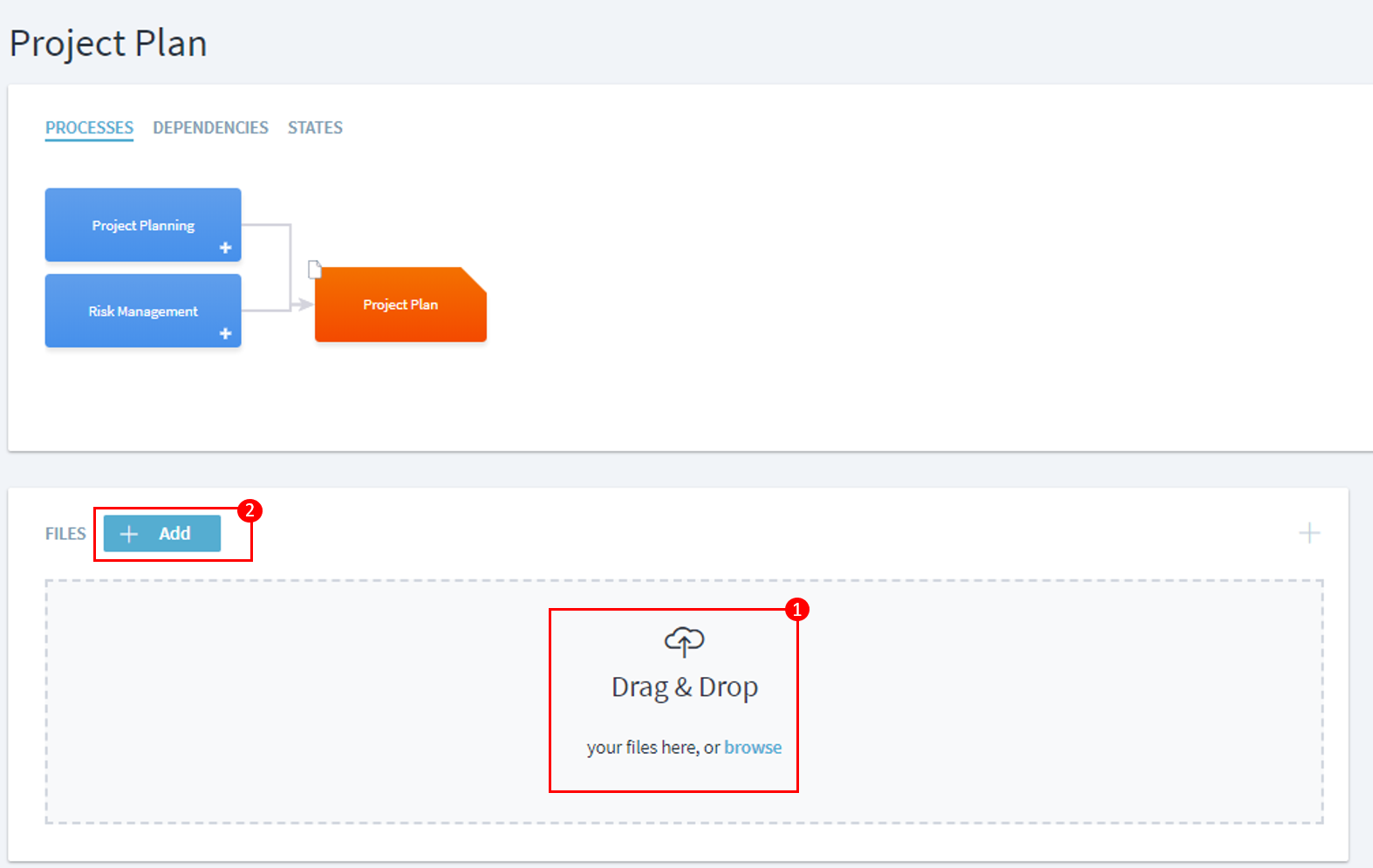
1. Uploading a new file: **Easiest way to add a new file is by using the drag & drop function or browsing to the folder **(1) and uploading the file. Alternatively, user can click on Add (2) and select the upload file from the widget. This uploads the file to configuration management system linked to Stages.
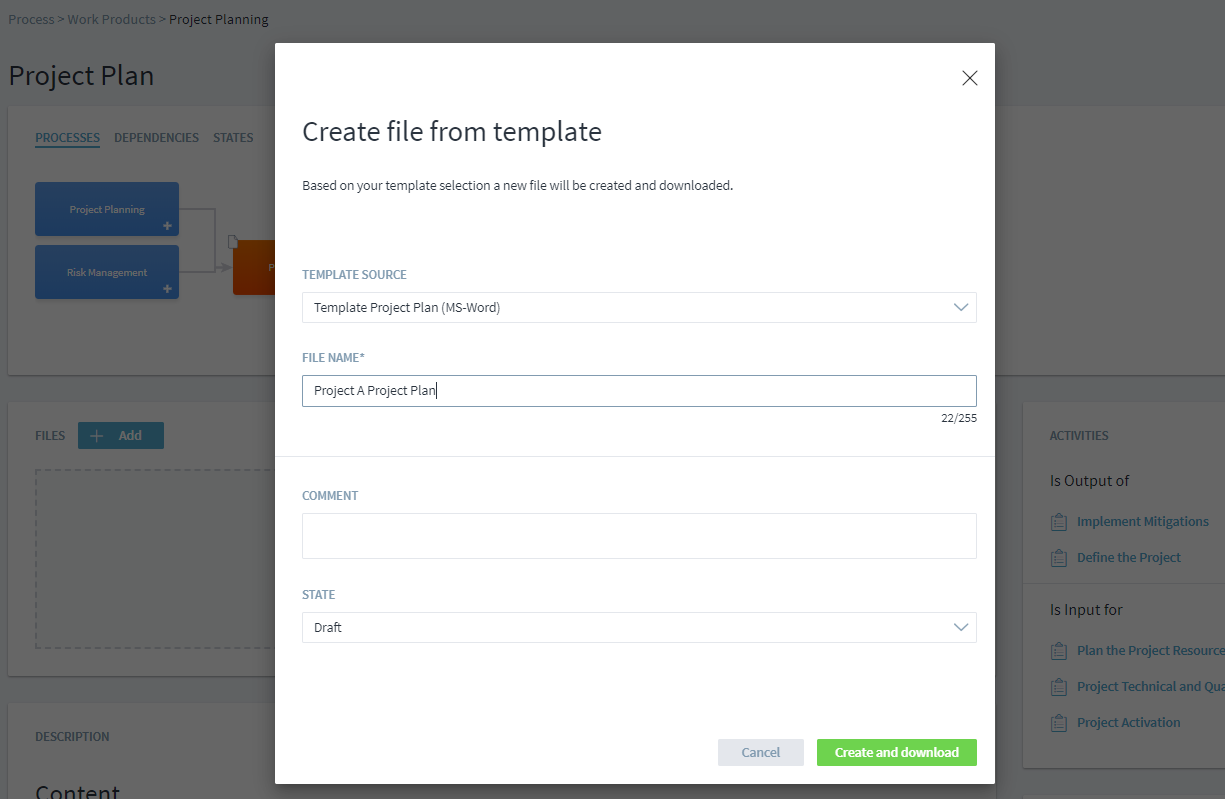
**2. Using a template to add a new file: **In Stages, files can also be created using a template associated with the Work Product where you are adding the file. This simplifies document creation and also ensures consistency across the organization.
To use a template, the Work Product must have an associated Template guidance element, as shown in the Guidance widget.
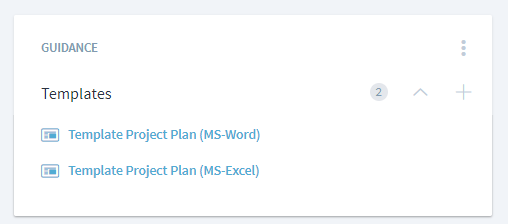
If a template is present in the guidance, you can use it to create a new work product file and store it in the linked CM.
**3. Adding a URL: **Add a URL to simply redirect users to a web page for further details on the work product. Note that no CM integration is required for this option; however, this option also does not provide information on version history, status, or other operations.
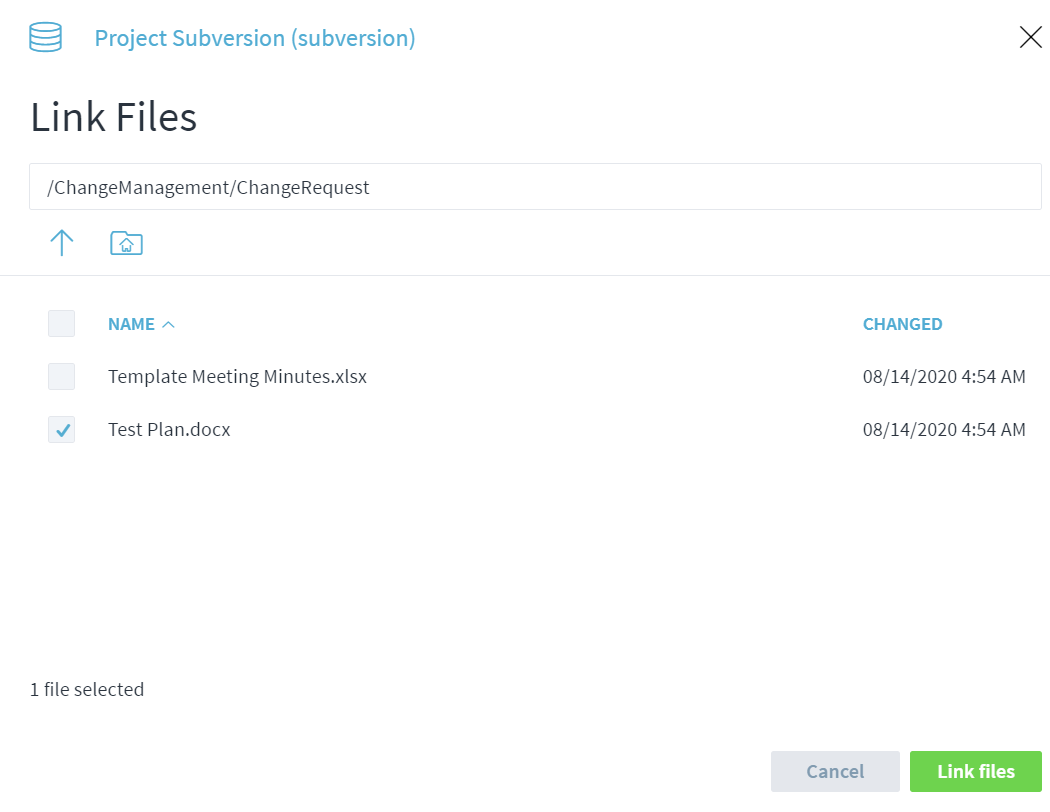
**4. Linking to an existing file: **If the file already exists in the CM system, create a link by browsing and selecting the file to the work product. Once linked in this way, you can access the version history and status and the integrated check in/ check out capabilities with the CM.
Using and checking in and out an existing file
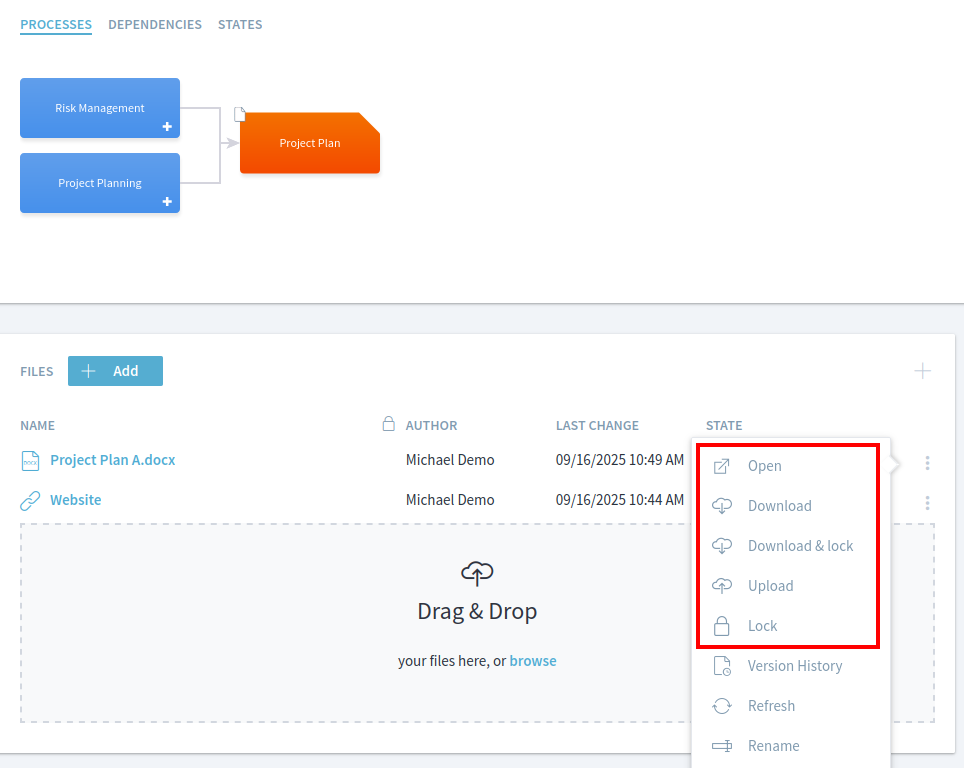
To work on an existing file, it can either be opened directly in the target CM system or be downloaded via Stages. The available options depend on the CM system. For example a Word document stored in SharePoint Online can be opened in the Office 365 Word Online editor or downloaded as a Word document.
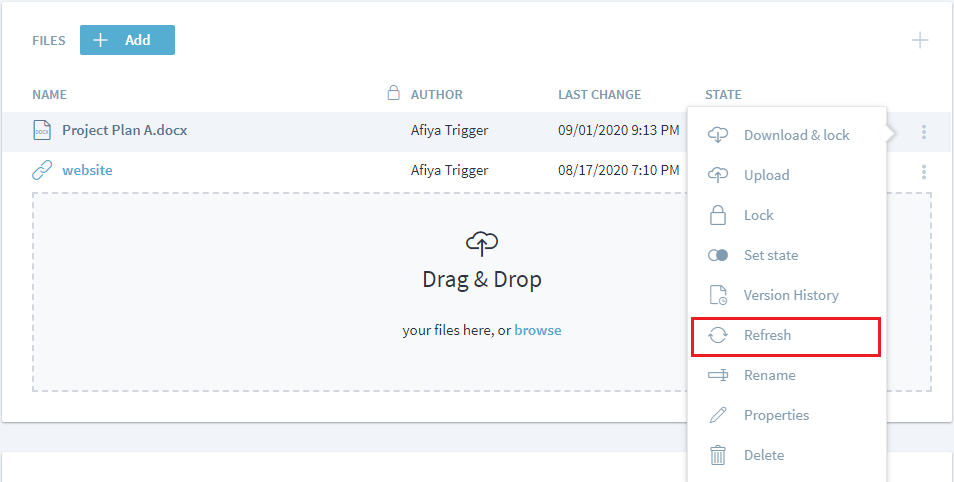
You can also check out the file by clicking on Download & lock. This prevents another user from downloading or checking in another version of the file. Alternatively, you can simply Lock the file to prevent another user from editing the file.
Once you are ready to check-in the file, click on Upload to check in the new version of the file.
Setting State of a File
In different phases of product development, reviews play an important part in ensuring defects are caught at the earliest and to improve the quality of the end deliverables. Stages offers two default lifecycle review options: Simple Document Review and Mandatory Document Review. In addition, there is also an option to configure the review lifecycle to align with your own organization's document review lifecycle.
In Simple Document Review, the file can be promoted from draft to release state. However, Mandatory Document Review has an additional state called 'review' between draft and released state requiring mandatory formal review of the file.
To set the state of the file, click on three dots next to the file name and select Set state.
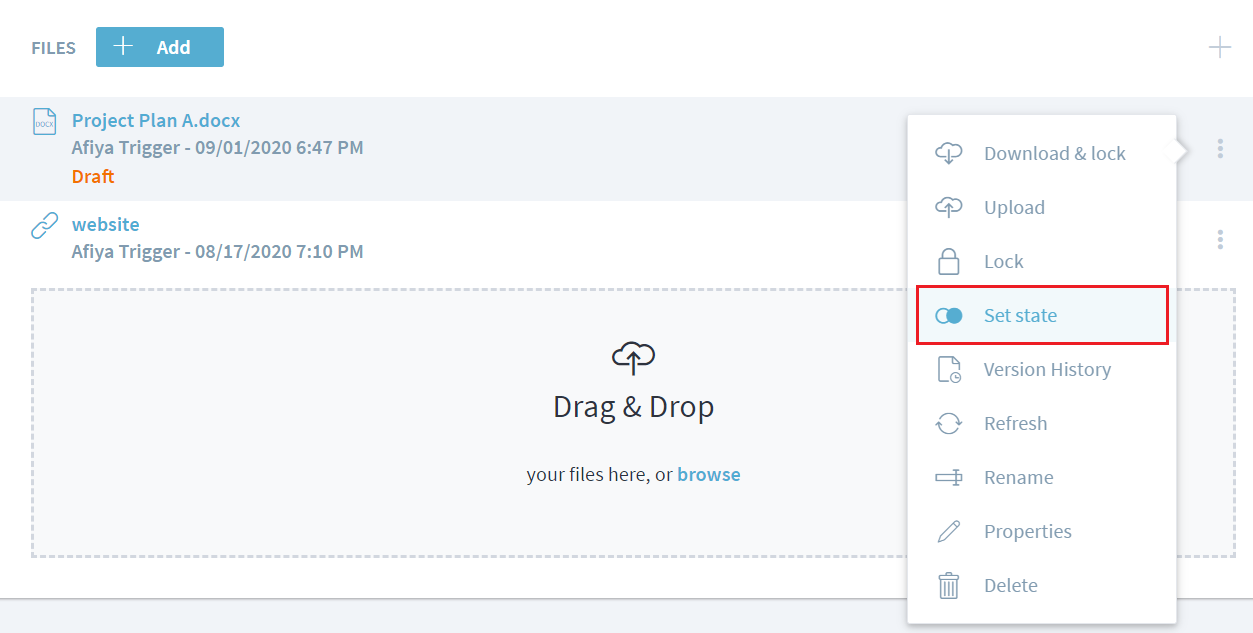
Set State to save the state. The options in the dropdown would depend on review lifecycle set by project manager.
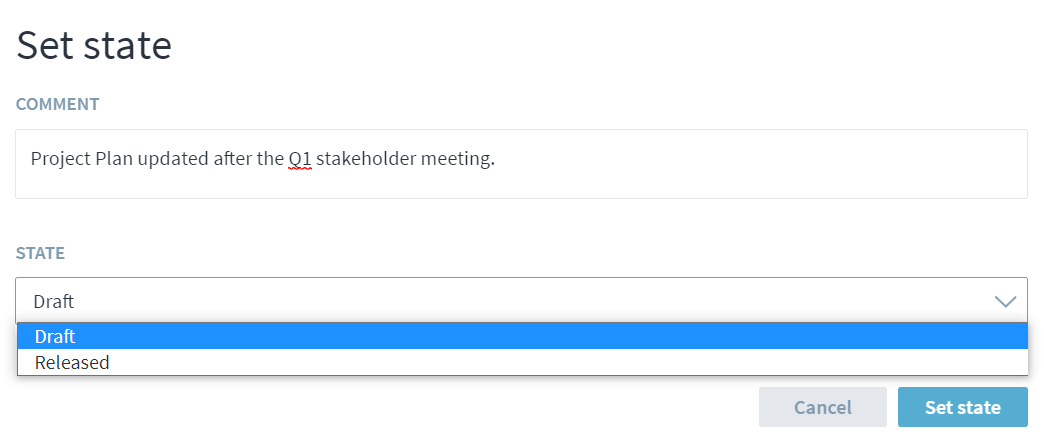
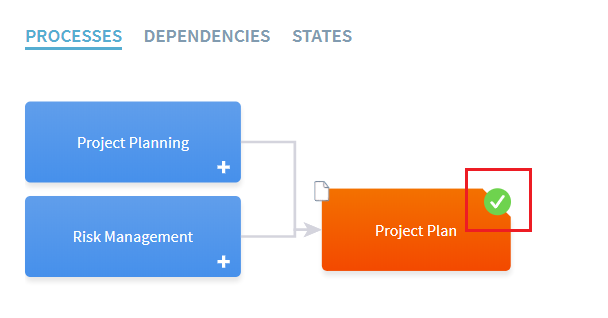
Once the state has been updated, the state icon on the work product will also get updated based on state of the file. In case there are multiple files, icon reflects the state of least mature file.
Notify other users about changes
Stages can automatically determine the users who should be notified about a new file version or modified state by analyzing the defined process.
By enabling the Notify Users switch, Stages displays the users that are assigned to roles of the activities that have the current work product as an input.
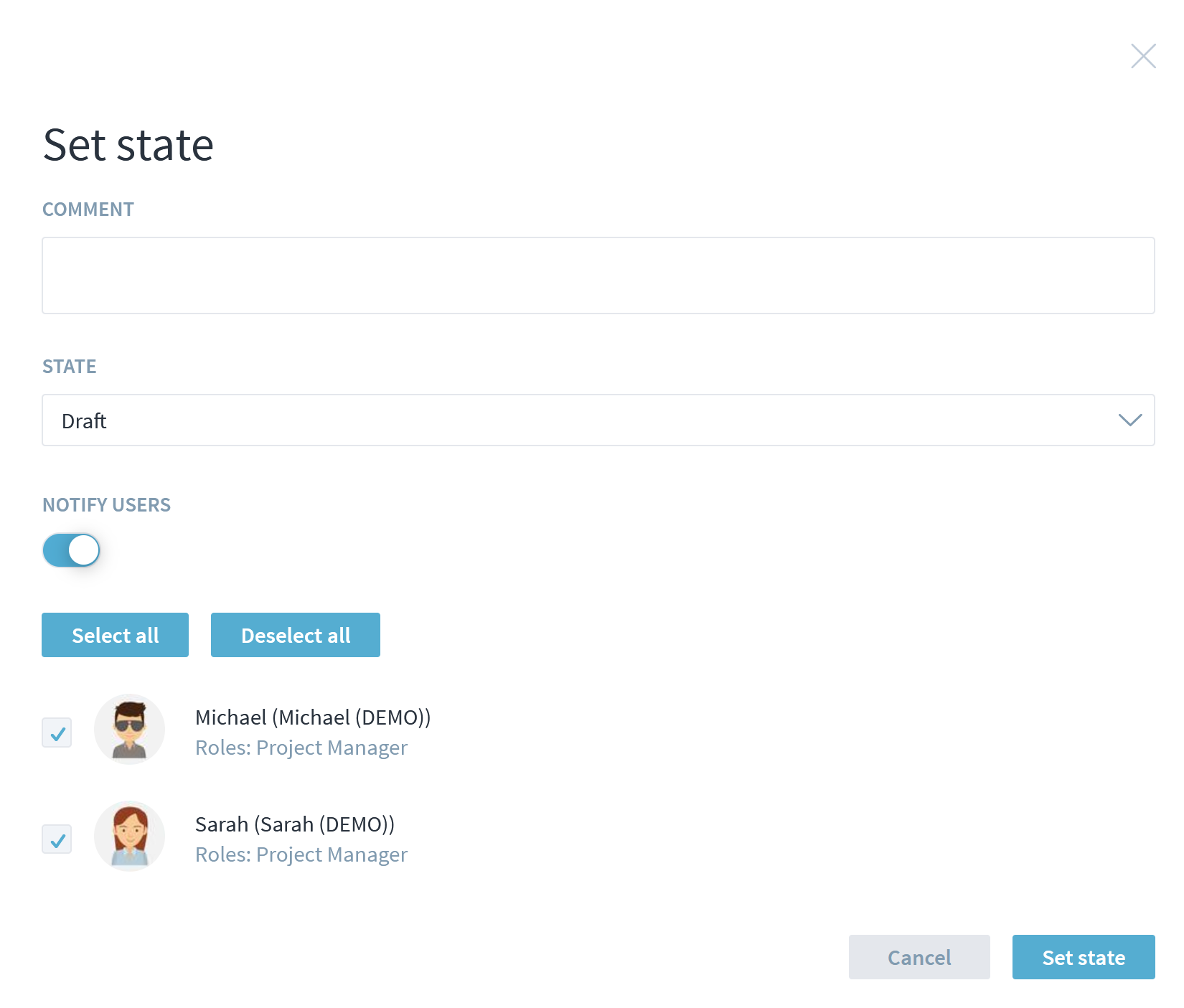
Please note that this functionality is only displayed, if an email notification server has been configured on the server.
Version History
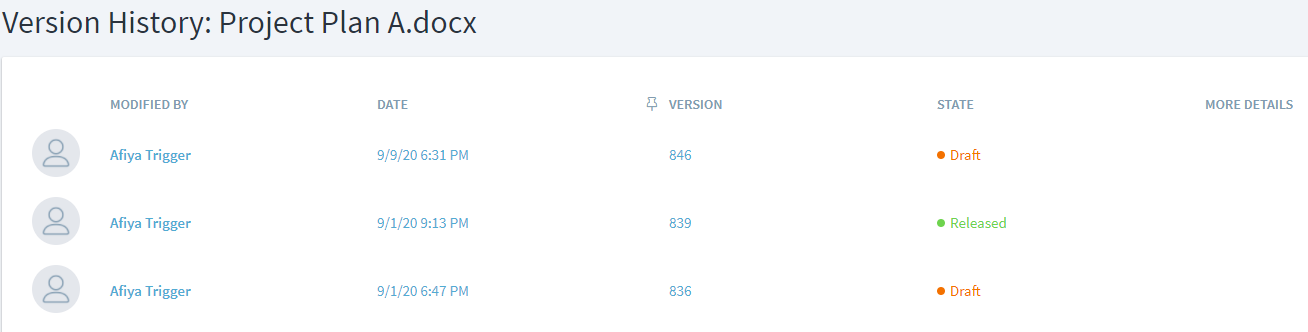
Using the version history, user can check all the version of the file along with other information like state, author and date and download the previous version if needed. To access version history, click on the three dots and select Version History.
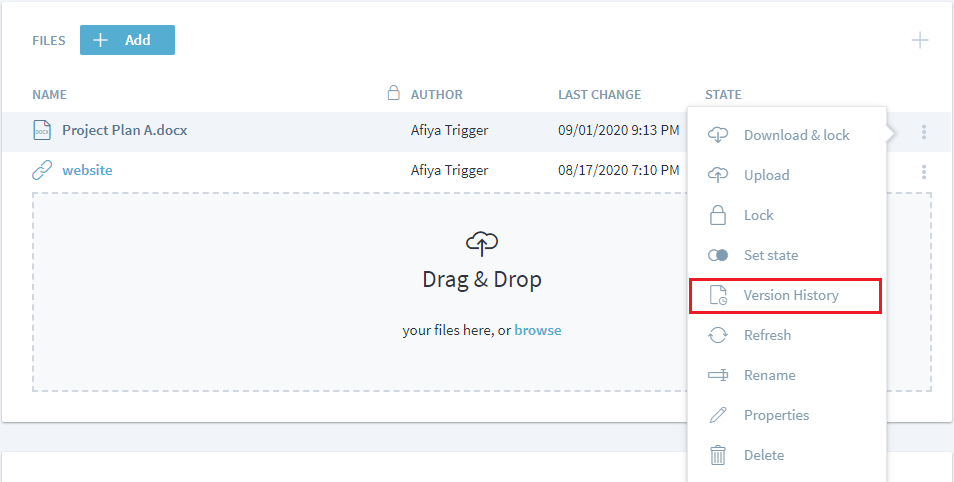
Click or tap on the version number to download that version of the file.
Using Refresh to sync with CM
When a user is working with a work product in Stages which has the file which is simultaneoulsy been updated in the CM system, Refresh can be used to access and update this latest information in Stages.